> For the complete documentation index, see [llms.txt](https://docs.digitalturbine.com/llms.txt). Markdown versions of documentation pages are available by appending `.md` to page URLs; this page is available as [Markdown](https://docs.digitalturbine.com/offerwall-advertisers/acp-edge-advertiser-dashboard/campaign-setup/previewing-campaigns.md).
# Previewing Campaigns
After completing the steps to create a campaign in ACP Edge, review the setup summary and preview how the campaign will appear to end-users in a live environment.
The Preview lets you evaluate the visual presentation of your campaign in the Offerwall list and on its info page in the right pane. It also includes a summary of the setup on the left pane to review and adjust campaign targeting.
### Opening a Preview
To preview a campaign and see how the campaign appears:
1. Select the **Preview** tab
2. Click **OPEN PREVIEW**.\
The Preview shows how the campaign appears to end-users.
{% hint style="info" %}
Translations do not appear in the Preview.
{% endhint %}
3. To view the options for orientation and device, click one of the following options under the image:
* Portrait
* Landscape
* Telephone
* Tablet
{% hint style="warning" %}
The reward amount shown in this Preview is unrelated to the campaign's bid. Reward amounts vary by app, depending on the app's exchange rate.
{% endhint %}
The following table describes the elements in the Preview.
| Element Name | Source | Customizable | Field Location |
| ---------------- | ---------------------------------------------- | -------------------------------------------------------------------------------------------------------------------------- | ---------------------------------------------------------- |
| Campaign Icon | App store icon or custom web icon | Yes | **Setup→Campaign Customization→Custom icon** |
| Complexity Tag | Value in Campaign Completion Range | Only on initial setup. Once the campaign is live, it will adjust automatically based on average user completion time data. | **Setup→Campaign Customization→Campaign Completion Range** |
| Price tag | Chosen Campaign Type | Yes, for all campaign types besides **Purchase/Payment Required**. | **Setup→General Configurations→Campaign Type** |
| Campaign Title | The wording of the Campaign Title | Yes | **Setup→Campaign Customization→Campaign Title** |
| Call to Action | Campaign Type | Depends on your defined campaign type | **Setup→General Configurations→Campaign Type** |
| Campaign Steps | The wording in Campaign Steps | Yes | **Tracking→Campaign Steps** |
| Campaign Comment | The wording in the Comment field | Yes | **Tracking→Comment** |
| Open Preview | View Preview and change orientation and device | Display only | **Preview window** |
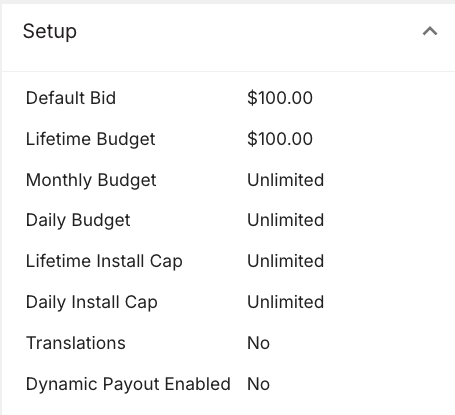
### Setup Summary
The **Setup** area allows you to view the following:
* **Default Bid**
* **Lifetime Budget**
* **Daily Budget**
* **Translations**
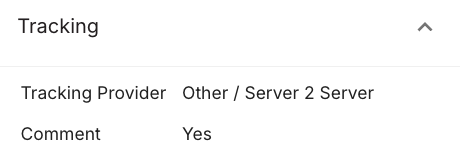
### Tracking Preview
The T**racking** area allows you to view the following tracking settings:
* **Tracking Provider**
* **Comments**
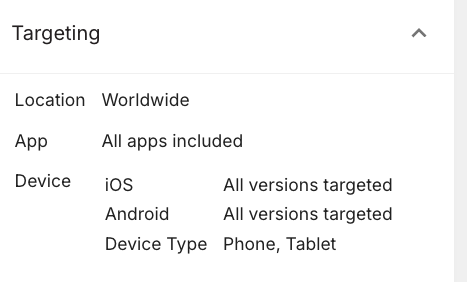
### Targeting Preview
The **Targeting** area allows you to view the following targeting settings:
* **Location**
* **App**
* **Device**
---
# Agent Instructions
This documentation is published with GitBook. GitBook is the documentation platform designed so that both humans and AI agents can read, navigate, and reason over technical content effectively. Learn more at gitbook.com.
## Querying This Documentation
If you need additional information that is not directly available in this page, you can query the documentation dynamically by asking a question.
Perform an HTTP GET request on the current page URL with the `ask` query parameter, and the optional `goal` query parameter:
```
GET https://docs.digitalturbine.com/offerwall-advertisers/acp-edge-advertiser-dashboard/campaign-setup/previewing-campaigns.md?ask=&goal=
```
`ask` is the immediate question: it should be specific, self-contained, and written in natural language.
`goal` is optional and describes the broader end goal you are ultimately trying to accomplish on behalf of the user. GitBook uses it to tailor the answer towards what is most useful for that goal.
The response will contain a direct answer to the question and relevant excerpts and sources from the documentation.
Use this mechanism when the answer is not explicitly present in the current page, you need clarification or additional context, or you want to retrieve related documentation sections.
.png?alt=media)