> For the complete documentation index, see [llms.txt](https://docs.digitalturbine.com/llms.txt). Markdown versions of documentation pages are available by appending `.md` to page URLs; this page is available as [Markdown](https://docs.digitalturbine.com/dt-fairbid/fairbid-sdk/tools/test-suite.md).
# Test Suite
The DT FairBid Test Suite allows you to check that your app is set up correctly and ready to mediate using DT FairBid mediation. It checks that the mediated networks associated with the app are fully integrated, that Placements and Instances are correctly set up, and that ads are successfully served.
## Launching the Test Suite
The Test Suite runs the following diagnostic tests when it launches:
* [Mediated Networks Integration Status](#mediated-networks-integration-status): Verifies whether mediated networks are properly integrated and ready to serve ads.
* [Placements](#placements): Verifies whether all configured Placements and Instances in the DT Console are correctly set up and run as expected by DT FairBid's auction on real-time ad requests.
### Launching the Test Suite via SDK
To launch the Test Suite via SDK or start the app in debug mode:
{% tabs %}
{% tab title="Android" %}
1. Initialize the FairBid SDK and import the `com.fyber.fairBid-sdk-plugin` header.
2. Run the following API:
{% code title="Java" %}
```java
FairBid.showTestSuite(activity);
```
{% endcode %}
{% endtab %}
{% tab title="iOS" %}
1. Initialize the FairBid SDK and import the `FairBidSDK/FairBid.h` header.
2. Run the following API:
{% code title="Swift" %}
```swift
FairBid.presentTestSuite()
```
{% endcode %}
{% code title="Objective-C" %}
```objective-c
[FairBid presentTestSuite];
```
{% endcode %}
{% endtab %}
{% tab title="Unity" %}
1. Initialize the FairBid SDK and import the `FairBidSDK.h` header.
2. Run the following API:
{% code title="C#" %}
```csharp
FairBid.ShowTestSuite();
```
{% endcode %}
{% endtab %}
{% endtabs %}
### Launch the Test Suite from Your App
You can launch the Test Suite from your app in Debug mode (signed with a Debug certificate). If the FairBid SDK detects integration errors, a pop-up message appears. No explicit SDK call is required.
To launch the Test Suite from your app:
1. Sign your app with a Debug certificate, and start your app.\
If the FairBid SDK detects integration errors, a pop-up that summarizes the errors found automatically appears.
{% hint style="info" %}
The FairBid SDK displays this pop-up only when your app is in debug mode. The FairBid SDK turns off this pop-up when you sign your app with a release certificate.
{% endhint %}
2. Tap **Test Suite**.\
The Test Suite opens with additional diagnostic details.
## Mediated Networks Integration Status
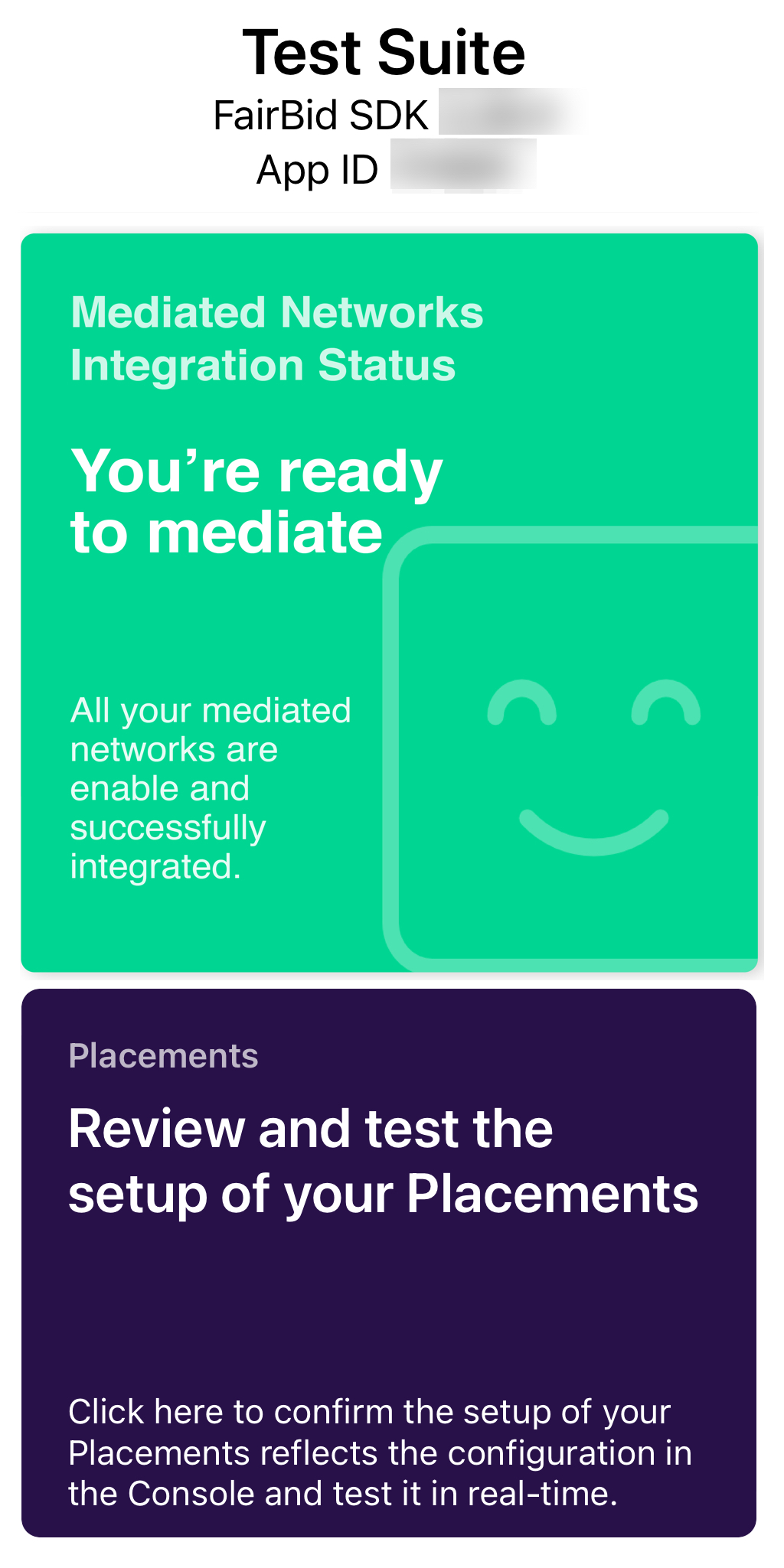
The main screen of the Test Suite gives you an immediate idea of your mediated network's integration status:
* Successful Integration: A green screen indicates that the associated mediated networks are connected and enabled. For more information about how to test the instances in your app, see [Testing Mediated Network Instances](#testing-mediated-network-instances).
* Unsuccessful Integration: A red screen indicates that the Test Suite encountered errors while attempting to connect to your mediated networks. Tap the red square for more information about the mediation errors.\
DT recommends correcting the identified issues before going live with your app.
| SUCCESSFUL INTEGRATION | UNSUCCESSFUL INTEGRATION |
| ------------------------------------------------------------------------------------------------------- | ------------------------------------------------------------------------------------------------------- |
|  |  |
### Troubleshooting Integration Errors
If the Test Suite detects an integration error, it provides information to help you identify and fix the issue. Some common errors and suggested fixes include:
#### Missing SDK
{% tabs %}
{% tab title="Android" %}
| ISSUE DESCRIPTION | SUGGESTED FIX |
|---|

The DT FairBid SDK requires the mediated ad network's SDK to work. If the Test Suite mentions that a network is missing its SDK, then it might mean you forgot to insert the network's SDK into your project. | Refer to the documentation on integrating that specific network into your project to resolve this problem. |
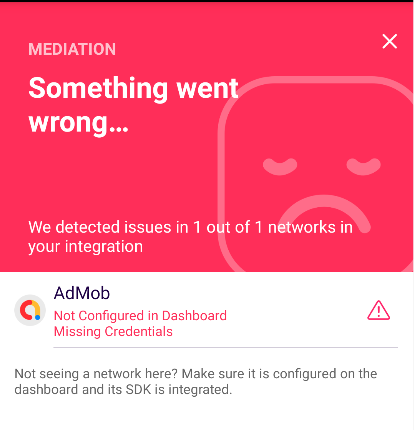
If the AdMob SDK is not implemented or configured in the Console but the Google Play Services API is still used in the project, the following error occurs when you integrate AdMob. | This message only applies to AdMob integrations. If you are not planning to integrate AdMob, you can ignore this error message. |
{% endtab %}
{% tab title="iOS" %}
| ISSUE DESCRIPTION | SUGGESTED FIX |
|---|
The DT FairBid SDK requires the mediated ad network's SDK to work. If the Test Suite mentions that a network is missing its SDK, then it might mean you forgot to insert the network's SDK into your project. | Refer to the documentation on integrating that specific network into your project to resolve this problem. |
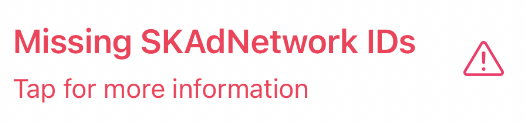
To allow attribution using SKAdNetwork, demand partners must register with Apple. Developers must configure their apps to work with ad networks by specifying SKAdNetwork IDs. Per Apple's SKAdNetwork documentation, you must include these IDs in the app's Info.plist file. | The Supported Networks Table allows you to select each network that you have integrated and produces the snippet for you to insert into the Info.plist You can also use the SKAdNetwork ID Auto Updater tool to manage SKAdNetwork IDs directly from XCode or Unity Editor. |
{% endtab %}
{% tab title="Unity" %}
| ISSUE DESCRIPTION | SUGGESTED FIX |
|---|
The DT FairBid SDK requires the mediated ad network's SDK to work. If the Test Suite mentions that a network is missing its SDK, then it might mean you forgot to insert the network's SDK into your project. | Refer to the documentation on integrating that specific network into your project to resolve this problem. |
{% endtab %}
{% endtabs %}
#### Not Configured in the Console
| ISSUE DESCRIPTION | SUGGESTED FIX |
|---|

DT FairBid SDK requires enabling the mediated ad networks in the console.
If the Test Suite mentions that a network is not configured in the console, you might have forgotten to enable it and configure it for your application in the console. | Refer to the documentation on integrating that specific network into your project to resolve this problem. |
#### Missing Credentials
| ISSUE DESCRIPTION | SUGGESTED FIX |
|---|

For the mediation stack of the DT FairBid SDK to work, the SDK needs to have access to your credentials for the different networks you integrate.
If the Test Suite mentions that a network is missing credentials, it was not configured with credentials in the Console. | Access the Console and verify that credentials are correctly configured for the relevant network to resolve this issue. |
#### Missing Activities
{% tabs %}
{% tab title="Android" %}
Not applicable.
{% endtab %}
{% tab title="iOS" %}
Not applicable.
{% endtab %}
{% tab title="Unity" %}
Android Only
| ISSUE DESCRIPTION | SUGGESTED FIX |
| ---------------------------------------------------------------------------------------------------------------------------------------------------------------------------------------------------------------------- | ------------------------------------------------------------------------------------------------------------------------------------------------------------------------ |
| 
Some SDKs require activities to be added to the manifest.xml file to run.
| To fix this issue, refer to the integration documentation specific to the faulty network and make sure all its required activities are added to the `manifest.xml` file. |
| {% endtab %} | |
| {% endtabs %} | |
#### Missing Permissions
{% tabs %}
{% tab title="Android" %}
Not applicable.
{% endtab %}
{% tab title="iOS" %}
Not applicable.
{% endtab %}
{% tab title="Unity" %}
Android Only
| ISSUE DESCRIPTION | SUGGESTED FIX |
| ---------------------------------------------------------------------------------------------------------------------------------------------------------------------------------------------------------------------- | ------------------------------------------------------------------------------------------------------------------------------------------------------------------------ |
|
Some SDKs require activities to be added to the manifest.xml file to run.
| To fix this issue, refer to the integration documentation specific to the faulty network and make sure all its required activities are added to the `manifest.xml` file. |
| {% endtab %} | |
| {% endtabs %} | |
### Testing Mediated Network Instances
After integrating the mediated networks, use the Test Suite to request and display ads:
1. Tap the green square on the main menu.
2. Select the network you want to interact with from the list of networks.
3. View the list of configured Instances in your app:
* Mediation Placements (waterfall instances).
* Programmatic Mediation Placements (bidding instances).
### Waterfall Instances
The Waterfall Instances section lists all Instances configured in the Console. Tap **Request** and **Show** to request and show ads for these Instances.

### Bidding Instances
This section lists all the bidding Instances configured in the Console and used throughout your app.
## Placements
The Placements section of the Test Suite allows you to validate placement setups and view performance details:
* Verify that the Placements Instances setup is applied correctly as configured in the Console.
* View the order of a Placement's Waterfall Instances, which includes CPM values predicted by the DT FairBid algorithm when you select Auto CPM in the Console.
* Request an ad and see in real-time how the DT FairBid auction selects a winner.
### Verify Placement Instance Setup
To view and verify the configured placements for your app:
1. Tap the Placement section of the main screen (the blue square).\
The Placements, including the Placement name, ID, and Type, appear.
2. To view the bidding Instances set for the placement, tap on a placement.\
For each Instance, the following information appears:
* Mediated Network name.
* Instance ID: Configured on the mediated network's dashboard and set in the DT Console.
* Predicted CPM Value:
* Auto CPM: The predicted value by DT FairBid's algorithm appears.
* Manual CPM: The value appears in bold, alongside the predicted value by FairBid's algorithm if available.
The Instance is positioned in the waterfall by the CPM values in bold.
|  |  |  |
| ------------------------------------------------------------------------------------------------------- | ------------------------------------------------------------------------------------------------------- | ------------------------------------------------------------------------------------------------------- |
### Running the DT FairBid Auction
To run the DT FairBid auction and verify that the Placement delivers ads successfully and instances are called as expected:
1. Tap **Request** (Show for banner placements) button.\
The DT FairBid auction starts running and looks for available ads from the Waterfall instances. If necessary, it proceeds to the bidders' auction to find a bid that meets the Placement floor price or beats the Waterfall result.
2. The Auction status appears at the bottom of the screen while the auction is running.\
Once the auction ends, the winning Instance appears.
3. To view the winning ad, tap **Show**.
|  |  |
| ------------------------------------------------------------------------------------------------------- | ------------------------------------------------------------------------------------------------------- |
### Waterfall Instance Responses
| RESPONSE | DESCRIPTION |
| ------------------------------------------------------------------------------------------------------------------------------------------------------- | ------------------------------------------------------------------------------------------ |
|  Requesting | Requesting an ad for the Instance. |
|
Requesting | Requesting an ad for the Instance. |
|  Fill | Instance returns an ad. |
|
Fill | Instance returns an ad. |
|  No Fill | Instance reports that no ad is available. |
|
No Fill | Instance reports that no ad is available. |
|  Instance Timeout | Instance does not respond in time, but the SDK is still awaiting a response. |
|
Instance Timeout | Instance does not respond in time, but the SDK is still awaiting a response. |
|  Failure | An error occurred during the Instance request, such as adapter failure, error, or timeout. |
## Troubleshooting
Requesting an ad can sometimes fail for many reasons. Below is a list of possible problems to check that can help you get an ad:
| PROBLEM | RESOLUTION |
| ------------------------- | ------------------------------------------------------------------------------------------------------------- |
| **Console Credentials** | Verify correct credentials and mediation placements. |
| **Console Logs** | Review console logs for network-specific warnings or integration notes. |
| **Network Documentation** | Confirm correct SDK integration and required settings, including test device setup and test ad configuration. |
## Caching Mechanism
The DT FairBid SDK implements a caching mechanism for the console configuration. As a result, you might experience some delays when you change your console configuration and when the changes reflect in the SDK. DT recommends deleting and reinstalling your application after every change in the Console.
---
# Agent Instructions
This documentation is published with GitBook. GitBook is the documentation platform designed so that both humans and AI agents can read, navigate, and reason over technical content effectively. Learn more at gitbook.com.
## Querying This Documentation
If you need additional information that is not directly available in this page, you can query the documentation dynamically by asking a question.
Perform an HTTP GET request on the current page URL with the `ask` query parameter, and the optional `goal` query parameter:
```
GET https://docs.digitalturbine.com/dt-fairbid/fairbid-sdk/tools/test-suite.md?ask=&goal=
```
`ask` is the immediate question: it should be specific, self-contained, and written in natural language.
`goal` is optional and describes the broader end goal you are ultimately trying to accomplish on behalf of the user. GitBook uses it to tailor the answer towards what is most useful for that goal.
The response will contain a direct answer to the question and relevant excerpts and sources from the documentation.
Use this mechanism when the answer is not explicitly present in the current page, you need clarification or additional context, or you want to retrieve related documentation sections.
Failure | An error occurred during the Instance request, such as adapter failure, error, or timeout. |
## Troubleshooting
Requesting an ad can sometimes fail for many reasons. Below is a list of possible problems to check that can help you get an ad:
| PROBLEM | RESOLUTION |
| ------------------------- | ------------------------------------------------------------------------------------------------------------- |
| **Console Credentials** | Verify correct credentials and mediation placements. |
| **Console Logs** | Review console logs for network-specific warnings or integration notes. |
| **Network Documentation** | Confirm correct SDK integration and required settings, including test device setup and test ad configuration. |
## Caching Mechanism
The DT FairBid SDK implements a caching mechanism for the console configuration. As a result, you might experience some delays when you change your console configuration and when the changes reflect in the SDK. DT recommends deleting and reinstalling your application after every change in the Console.
---
# Agent Instructions
This documentation is published with GitBook. GitBook is the documentation platform designed so that both humans and AI agents can read, navigate, and reason over technical content effectively. Learn more at gitbook.com.
## Querying This Documentation
If you need additional information that is not directly available in this page, you can query the documentation dynamically by asking a question.
Perform an HTTP GET request on the current page URL with the `ask` query parameter, and the optional `goal` query parameter:
```
GET https://docs.digitalturbine.com/dt-fairbid/fairbid-sdk/tools/test-suite.md?ask=&goal=
```
`ask` is the immediate question: it should be specific, self-contained, and written in natural language.
`goal` is optional and describes the broader end goal you are ultimately trying to accomplish on behalf of the user. GitBook uses it to tailor the answer towards what is most useful for that goal.
The response will contain a direct answer to the question and relevant excerpts and sources from the documentation.
Use this mechanism when the answer is not explicitly present in the current page, you need clarification or additional context, or you want to retrieve related documentation sections.