> For the complete documentation index, see [llms.txt](https://docs.digitalturbine.com/llms.txt). Markdown versions of documentation pages are available by appending `.md` to page URLs; this page is available as [Markdown](https://docs.digitalturbine.com/dt-fairbid/fairbid-sdk/supported-networks/network-integration-guides/inmobi.md).
# InMobi
This article is for publishers who want to use the DT FairBid SDK to load and display ads from InMobi via DT FairBid Mediation.
InMobi currently supports the the following [ad types](/dt-exchange/additional-resources/ad-types-and-specification.md):
* Banner
* Interstitial
* Rewarded
To integrate InMobi as a DT mediated network:
* [Step 1: Retrieve your InMobi parameters](#step-1-retrieve-inmobi-parameters).
* [Step 2: Add InMobi as a DT mediated network](#step-2-add-inmobi-as-a-mediated-network).
* [Step 3: Add the InMobi SDK to your integration](#obtaining-the-placement-id).
* [Step 4: Test your integration](#step-4-test-your-integration).
## Step 1: Retrieve InMobi Parameters
Before retrieving InMobi parameters, ensure that you have InMobi ad unit inventory that you want to mediate with DT. For more information about creating InMobi inventory, see the following InMobi articles:
* [Create](https://publisher.inmobi.com/signup) an InMobi account.
* [Create](https://support.inmobi.com/monetize/publisher-dashboard/inventory-tab/inventory-settings#add-inventory) an app in InMobi with the following considerations:
* Verify the target audience to confirm if the application is specifically intended for children under 16.
* Whether to authorize InMobi to access device location using *Location Permission*.
* Consider using the Block Setting option selection if you are opting to enforce such restrictions.
* [Create](https://support.inmobi.com/monetize/publisher-dashboard/inventory-tab/inventory-settings#create-placements) a placements in InMobi for traditional waterfall mediation or SDK Bidding (Audience Bidding).
To set up InMobi as a DT mediated network, locate the following InMobi parameters:
| INMOBI PARAMETER | REQUIRED FOR | DESCRIPTION |
| ---------------- | ----------------------------------------------- | ---------------------------------------------------------------------------------------------------------------------------------------------- |
| `User Name` | | Your user name, as defined in the InMobi system, that you use to log in to your InMobi account. |
| `ACCOUNT ID` | | The unique ID of your account in the InMobi system. |
| `API Key` | | A unique identifier for your InMobi account that allows the DT FairBid mediation platform to import performance data from your InMobi account. |
| `Placement ID` | | The unique Name/ID of a placement in the InMobi system. |
### Obtaining the InMobi Account ID
1. Log in to your [InMobi account](https://login.microsoftonline.com/99b97e0e-6a13-4d32-b39a-1a2a28aa6ba8/oauth2/v2.0/authorize?redirect_uri=https%3A%2F%2Fpublisher.inmobi.com%2Fauth%2Fopenid%2Freturn\&client_id=f464a21e-8c1a-4717-aa29-86f89624762d\&scope=openid+profile\&response_type=id_token\&response_mode=form_post\&nonce=8f4vUXm084), and go to **Finance → Payment Settings → Payment Information**.\
Your InMobi account information displays.
2. Copy the `ACCOUNT ID`, and store the value in a text file. This value is required later in [Step 2](#h_01HN007B7WTB7QNA9P66MA0P94) to add InMobi as a DT mediated network.
### Obtaining the API Key
1. Log in to your [InMobi account](https://login.microsoftonline.com/99b97e0e-6a13-4d32-b39a-1a2a28aa6ba8/oauth2/v2.0/authorize?redirect_uri=https%3A%2F%2Fpublisher.inmobi.com%2Fauth%2Fopenid%2Freturn\&client_id=f464a21e-8c1a-4717-aa29-86f89624762d\&scope=openid+profile\&response_type=id_token\&response_mode=form_post\&nonce=8f4vUXm084).
2. From the the drop-down at the top right-hand corner of your InMobi admin panel, go to **Account Settings → API Key → Generate Key**.\
A new API Key displays.
3. Copy the generated key, and store the value in a text file. This value is required later in [Step 2](#h_01HN007B7WTB7QNA9P66MA0P94) to add InMobi as a DT mediated network.
#### Obtaining the Placement ID
1. Log in to your [InMobi account](https://login.microsoftonline.com/99b97e0e-6a13-4d32-b39a-1a2a28aa6ba8/oauth2/v2.0/authorize?redirect_uri=https%3A%2F%2Fpublisher.inmobi.com%2Fauth%2Fopenid%2Freturn\&client_id=f464a21e-8c1a-4717-aa29-86f89624762d\&scope=openid+profile\&response_type=id_token\&response_mode=form_post\&nonce=8f4vUXm084), and go to **Inventory → Inventory Settings.** .
2. Select your App.\
A list of associated placements display.
3. For each placement you want to mediate with DT, copy the **Placement ID** to a text file. These values are required later in [Step 2](#h_01HN007B7WTB7QNA9P66MA0P94) to add InMobi as a DT mediated network.
## Step 2: Add InMobi as a Mediated Network
Before you add InMobi as a DT mediated network:
* Ensure that you have access to parameters you retrieved from InMobi in [Step 1](#h_01J9W9C31TWB39TK3MG01T6EXE).
* [Add your App](/dt-console/app-management/adding-a-new-app/adding-an-app.md) using the DT Console.
* Ensure that you [set up a DT Placement](/dt-console/app-management/setting-up-an-existing-app/setting-up-placements.md) for each InMobi ad type you want to mediate with DT.
To add InMobi as a mediated network:
1. Log in to the [DT Console](https://console.fyber.com/), and click **App Management**.
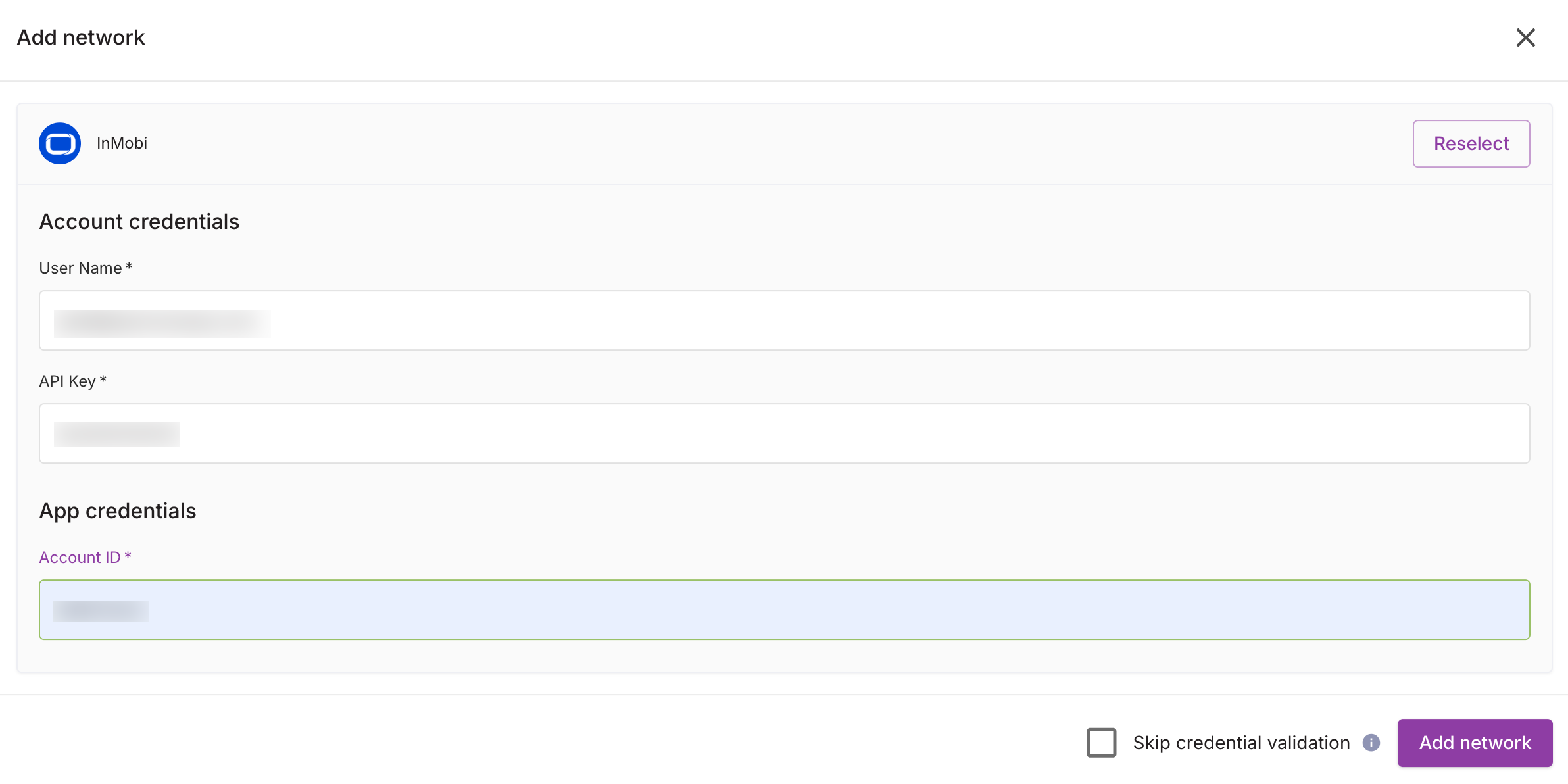
2. [Set up](/dt-console/app-management/setting-up-an-existing-app/setting-up-mediated-networks.md) **InMobi** or **InMobi bidder** as a mediated network using the parameters you retrieved in [Step 1](#h_01J9W9C31TWB39TK3MG01T6EXE).
3. [Set up an ad network instance](/dt-console/app-management/setting-up-an-existing-app/setting-up-instances.md) for each ad type you want to mediate with DT. Use the InMobi `Placement ID` you retrieved in [Step 1](#h_01J9W9C31TWB39TK3MG01T6EXE) for the **Instance ID**.
## Step 3: Adding the InMobi SDK to your Integration
To integrate the InMobi SDK, follow the instructions on the [Supported Networks](/dt-fairbid/fairbid-sdk/supported-networks.md) page.
## Step 4: Test Your Integration
Use the DT Test Suite to verify that you have set up your app properly for FairBid mediation. The DT Test Suite is available for Android, iOS, and Unity apps. For more information about using the DT Test Suite, see [Test Suite](/dt-fairbid/fairbid-sdk/tools/test-suite.md).
---
# Agent Instructions
This documentation is published with GitBook. GitBook is the documentation platform designed so that both humans and AI agents can read, navigate, and reason over technical content effectively. Learn more at gitbook.com.
## Querying This Documentation
If you need additional information that is not directly available in this page, you can query the documentation by asking a question.
Perform an HTTP GET request on the following URL with the `ask` and `goal` query parameters:
```
GET https://docs.digitalturbine.com/dt-fairbid/fairbid-sdk/supported-networks/network-integration-guides/inmobi.md?ask=&goal=
```
`ask` is the immediate question: it should be specific, self-contained, and written in natural language.
`goal` is what the user is ultimately trying to achieve, the reason they need the answer. Sharing it helps GitBook give you a better, more relevant answer. A goal is most helpful when it describes the outcome the user wants rather than restating the question. For example, with `ask=how do I create an API token`, a goal like `automate deployments from our CI pipeline` lets GitBook tailor the answer to that use case.
The response will contain a direct answer to the question and relevant excerpts and sources from the documentation.
Use this mechanism when the answer is not explicitly present in the current page, you need clarification or additional context, or you want to retrieve related documentation sections.