> For the complete documentation index, see [llms.txt](https://docs.digitalturbine.com/llms.txt). Markdown versions of documentation pages are available by appending `.md` to page URLs; this page is available as [Markdown](https://docs.digitalturbine.com/dt-fairbid/fairbid-sdk/ad-formats/native-ads.md).
# Native Ads
Native ads deliver individual ad assets (headline, body text, icon, media, and call-to-action) that you render inside your own layout, so ads blend naturally with your app's content. DT FairBid mediates demand from multiple networks through a single, unified API; your layout code never needs to know which network served the ad.
{% hint style="warning" %}
Before integrating native ads, ensure that you are aware of the following requirements and limitations:
* Native ads require FairBid SDK 3.68.0 or later.
* Not all networks support this format. For more information about which networks support native ads, see [Supported Networks](/dt-fairbid/fairbid-sdk/supported-networks.md).
* There is no Unity support for native ads.
{% endhint %}
## Why Native Ads?
Unlike banner or interstitial formats, native ads give you full design control. You choose the layout, fonts, colors, and placement. Combined with FairBid's mediation, this control offers the following benefits:
* Less intrusive. Ads that match your content's visual style are less disruptive to the user experience, which leads to higher engagement and lower abandonment rates.
* One integration, multiple networks. FairBid abstracts away network-specific rendering logic; each adapter handles impression and click tracking on your behalf.
* No `show()` call. Native ads are loaded into a view and displayed as part of your UI. They do not interrupt the user with a full-screen takeover.
## Integrating Native Ads
Integrating native ads involves the following steps:
{% stepper %}
{% step %}
#### [Request a Native Ad](#request-a-native-ad)
Pass a listener to the request call to receive the loaded ad or a failure.
{% endstep %}
{% step %}
#### [Build and Wire the Layout](#build-and-wire-the-layout-1)
Create a `NativeAdView` (Android) or `FYBNativeAdView` (iOS) and assign your sub-views for each asset slot.
{% endstep %}
{% step %}
#### [Bind the Ad to the View](#bind-the-ad-to-the-view)
Call `setNativeAd` to populate the layout and register tracking.
{% endstep %}
{% step %}
#### [Handle Events](#handle-events-1)
Assign a listener to the loaded ad to receive impression, click, and error callbacks.
{% endstep %}
{% step %}
#### [Destroy the Ad](#destroy-the-ad)
Release resources when the ad view leaves the screen.
{% endstep %}
{% endstepper %}
### Request a Native Ad
Pass a listener to the request call. The listener is scoped to a single request and receives exactly one terminal callback: either a successful load or a failure.
{% tabs %}
{% tab title="Android" %}
{% code title="Kotlin" %}
```kotlin
Native.request("YOUR_PLACEMENT_ID", object : NativeAdLoadListener {
override fun onLoad(placementId: String, nativeAd: NativeAd) {
// Ad is ready. Bind it to your view.
}
override fun onFailedToLoad(placementId: String, error: NativeAdError) {
// No fill. Retry later if desired.
}
override fun onRequestStart(placementId: String, requestId: String) {
// Called when the request is sent to the ad server. Use requestId for debugging.
}
})
```
{% endcode %}
{% code title="Java" %}
```java
Native.request("YOUR_PLACEMENT_ID", new NativeAdLoadListener() {
@Override
public void onLoad(String placementId, NativeAd nativeAd) {
// Ad is ready. Bind it to your view.
}
@Override
public void onFailedToLoad(String placementId, NativeAdError error) {
// No fill. Retry later if desired.
}
@Override
public void onRequestStart(String placementId, String requestId) {
// Called when the request is sent to the ad server.
}
});
```
{% endcode %}
{% endtab %}
{% tab title="iOS" %}
{% code title="Swift" %}
```swift
extension MyViewController: FYBNativeAdLoadDelegate {
func requestNativeAd() {
FYBNative.request("YOUR_PLACEMENT_ID", delegate: self)
}
func nativeAdDidLoad(_ placementId: String, nativeAd: FYBNativeAd) {
// Ad is ready. Bind it to your view.
}
func nativeAdDidFailToLoad(_ placementId: String, withError error: Error) {
// No fill. Retry later if desired.
}
func nativeAdDidRequestStart(_ placementId: String, requestId: String) {
// Called when the request is sent to the ad server.
}
}
```
{% endcode %}
{% code title="Objective-C" %}
```objectivec
- (void)requestNativeAd {
[FYBNative requestWithPlacementId:@"YOUR_PLACEMENT_ID" delegate:self];
}
#pragma mark - FYBNativeAdLoadDelegate
- (void)nativeAdDidLoad:(NSString *)placementId nativeAd:(FYBNativeAd *)nativeAd {
// Ad is ready. Bind it to your view.
}
- (void)nativeAdDidFailToLoad:(NSString *)placementId withError:(NSError *)error {
// No fill. Retry later if desired.
}
- (void)nativeAdDidRequestStart:(NSString *)placementId requestId:(NSString *)requestId {
// Called when the request is sent to the ad server.
}
```
{% endcode %}
{% endtab %}
{% endtabs %}
### Build and Wire the Layout
Create a `NativeAdView` (Android) or `FYBNativeAdView` (iOS) and assign your sub-views for each asset slot you plan to display (unused slots can be omitted).
{% tabs %}
{% tab title="Android" %}
Define your layout in XML. Adapt the following example XML to your app's visual design.
{% code title="XML" %}
```xml
```
{% endcode %}
Wire the asset views in code:
{% code title="Kotlin" %}
```kotlin
private fun setupNativeAdView(root: View): NativeAdView {
val adView = root.findViewById(R.id.native_ad_view)
adView.titleView = root.findViewById(R.id.native_ad_title)
adView.bodyView = root.findViewById(R.id.native_ad_body)
adView.callToActionView = root.findViewById(R.id.native_ad_cta)
adView.iconView = root.findViewById(R.id.native_ad_icon)
adView.mediaView = root.findViewById(R.id.native_ad_media)
adView.adChoicesView = root.findViewById(R.id.native_ad_choices)
return adView
}
```
{% endcode %}
{% code title="Java" %}
```java
private NativeAdView setupNativeAdView(View root) {
NativeAdView adView = root.findViewById(R.id.native_ad_view);
adView.setTitleView(root.findViewById(R.id.native_ad_title));
adView.setBodyView(root.findViewById(R.id.native_ad_body));
adView.setCallToActionView(root.findViewById(R.id.native_ad_cta));
adView.setIconView(root.findViewById(R.id.native_ad_icon));
adView.setMediaView(root.findViewById(R.id.native_ad_media));
adView.setAdChoicesView(root.findViewById(R.id.native_ad_choices));
return adView;
}
```
{% endcode %}
{% endtab %}
{% tab title="iOS" %}
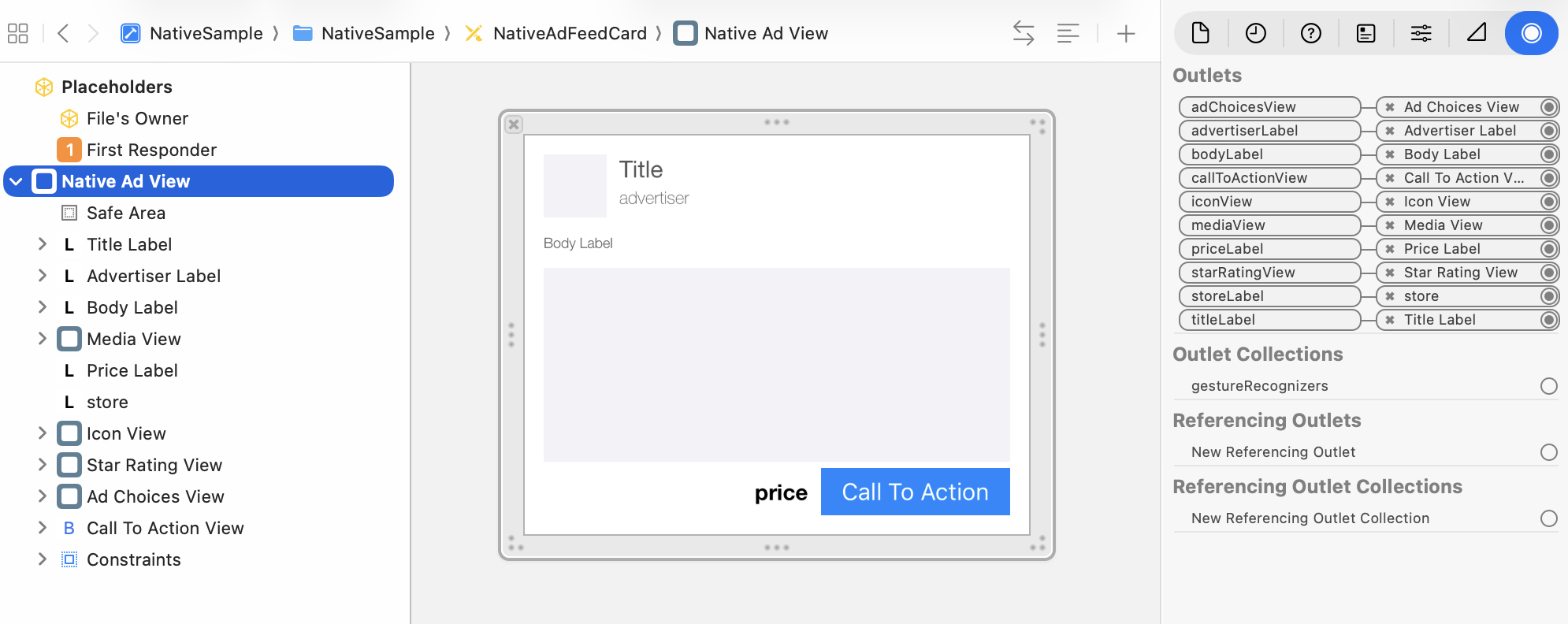
Design your `FYBNativeAdView` layout in a `.xib` file and connect its outlets in Interface Builder, then instantiate from the nib at runtime:
{% code title="Swift" %}
```swift
let nib = UINib(nibName: "MyNativeView", bundle: .main)
let adView = nib.instantiate(withOwner: nil, options: nil).first as! FYBNativeAdView
```
{% endcode %}
{% code title="Objective-C" %}
```objectivec
UINib *nib = [UINib nibWithNibName:@"MyNativeView" bundle:[NSBundle mainBundle]];
FYBNativeAdView *adView = (FYBNativeAdView *)[[nib instantiateWithOwner:nil options:nil] firstObject];
```
{% endcode %}
{% hint style="warning" %}
Interface Builder cannot discover outlets from a class inside an `.xcframework`. This is an Apple bug with no known fix date. When `FairBidSDK.xcframework` is your only source of `FYBNativeAdView`, the outlets panel in Xcode stays empty and connections cannot be made.
As a workaround, copy `FYBNativeAdView.h` into your project so the header is compiled into your target. Once Xcode sees the header, all `IBOutlet` properties appear in Interface Builder and can be connected normally. Keep the copy in sync with the header shipped in the SDK.
{% endhint %}
{% endtab %}
{% endtabs %}
### Bind the Ad to the View
Call `setNativeAd` after wiring the layout slots. The SDK populates text fields, loads the icon and media into their containers, and registers all views with the underlying network SDK for impression and click tracking.
When a network reports the media asset's width/height ratio, `nativeAd.mediaAspectRatio` provides the value. Not all networks report this ratio. When the ratio is present and greater than zero, apply it as a layout constraint before the layout pass so the container is sized correctly for both image and video fills. When the ratio is absent or zero, let the media view size itself to fit its content.
{% tabs %}
{% tab title="Android" %}
{% code title="Kotlin" %}
```kotlin
fun renderNativeAd(nativeAd: NativeAd) {
val adView = setupNativeAdView(binding.root)
nativeAd.mediaAspectRatio?.takeIf { it > 0 }?.let { ratio ->
adView.mediaView?.let { mediaView ->
mediaView.post {
val w = mediaView.width
if (w > 0) {
mediaView.updateLayoutParams { height = (w / ratio).toInt() }
}
}
}
}
adView.setNativeAd(nativeAd)
binding.adContainer.addView(adView)
}
```
{% endcode %}
{% code title="Java" %}
```java
private void renderNativeAd(NativeAd nativeAd) {
NativeAdView adView = setupNativeAdView(
getLayoutInflater().inflate(R.layout.native_ad_item, binding.adContainer, false));
Float ratio = nativeAd.getMediaAspectRatio();
if (ratio != null && ratio > 0) {
View mediaView = adView.getMediaView();
if (mediaView != null) {
float r = ratio;
mediaView.post(() -> {
int w = mediaView.getWidth();
if (w > 0) {
ViewGroup.LayoutParams lp = mediaView.getLayoutParams();
lp.height = (int) (w / r);
mediaView.setLayoutParams(lp);
}
});
}
}
adView.setNativeAd(nativeAd);
binding.adContainer.addView(adView);
}
```
{% endcode %}
{% endtab %}
{% tab title="iOS" %}
{% code title="Swift" %}
```swift
func renderNativeAd(_ nativeAd: FYBNativeAd) {
let nib = UINib(nibName: "MyNativeView", bundle: .main)
let adView = nib.instantiate(withOwner: nil, options: nil).first as! FYBNativeAdView
if let ratio = nativeAd.mediaAspectRatio?.floatValue, ratio > 0,
let mediaView = adView.mediaView {
mediaView.widthAnchor.constraint(
equalTo: mediaView.heightAnchor,
multiplier: CGFloat(ratio)
).isActive = true
}
adView.setNativeAd(nativeAd)
containerView.addSubview(adView)
}
```
{% endcode %}
{% code title="Objective-C" %}
```objectivec
- (void)renderNativeAd:(FYBNativeAd *)nativeAd {
UINib *nib = [UINib nibWithNibName:@"MyNativeView" bundle:[NSBundle mainBundle]];
FYBNativeAdView *adView = (FYBNativeAdView *)[[nib instantiateWithOwner:nil options:nil] firstObject];
NSNumber *ratio = nativeAd.mediaAspectRatio;
if (ratio != nil && ratio.floatValue > 0 && adView.mediaView != nil) {
[[adView.mediaView.widthAnchor constraintEqualToAnchor:adView.mediaView.heightAnchor
multiplier:ratio.floatValue] setActive:YES];
}
[adView setNativeAd:nativeAd];
[self.containerView addSubview:adView];
}
```
{% endcode %}
{% endtab %}
{% endtabs %}
### Handle Events
Assign a listener to the loaded ad to receive impression, click, and error callbacks. Set the listener inside `onLoad` / `nativeAdDidLoad`, ideally before calling `setNativeAd` so no events are missed during view binding.
{% tabs %}
{% tab title="Android" %}
{% code title="Kotlin" %}
```kotlin
override fun onLoad(placementId: String, nativeAd: NativeAd) {
nativeAd.adListener = object : NativeAdListener {
override fun onShow(placementId: String, impressionData: ImpressionData) {
// Called when the ad impression is recorded.
}
override fun onClick(placementId: String) {
// Called when the user taps the ad.
}
override fun onError(placementId: String, error: NativeAdError) {
// Called when a runtime error occurs after the ad is loaded.
}
}
renderNativeAd(nativeAd)
}
```
{% endcode %}
{% code title="Java" %}
```java
@Override
public void onLoad(String placementId, NativeAd nativeAd) {
nativeAd.setAdListener(new NativeAdListener() {
@Override
public void onShow(String placementId, ImpressionData impressionData) {
// Called when the ad impression is recorded.
}
@Override
public void onClick(String placementId) {
// Called when the user taps the ad.
}
@Override
public void onError(String placementId, NativeAdError error) {
// Called when a runtime error occurs after the ad is loaded.
}
});
renderNativeAd(nativeAd);
}
```
{% endcode %}
{% endtab %}
{% tab title="iOS" %}
{% code title="Swift" %}
```swift
func nativeAdDidLoad(_ placementId: String, nativeAd: FYBNativeAd) {
nativeAd.delegate = self
renderNativeAd(nativeAd)
}
// MARK: - FYBNativeAdDelegate
func nativeAdDidShow(_ placementId: String, impressionData: FYBImpressionData) {
// Called when the ad impression is recorded.
}
func nativeAdDidClick(_ placementId: String) {
// Called when the user taps the ad.
}
func nativeAdDidError(_ placementId: String, withError error: Error) {
// Called when a runtime error occurs after the ad is loaded.
}
```
{% endcode %}
{% code title="Objective-C" %}
```objectivec
- (void)nativeAdDidLoad:(NSString *)placementId nativeAd:(FYBNativeAd *)nativeAd {
nativeAd.delegate = self;
[self renderNativeAd:nativeAd];
}
#pragma mark - FYBNativeAdDelegate
- (void)nativeAdDidShow:(NSString *)placementId impressionData:(FYBImpressionData *)impressionData {
// Called when the ad impression is recorded.
}
- (void)nativeAdDidClick:(NSString *)placementId {
// Called when the user taps the ad.
}
- (void)nativeAdDidError:(NSString *)placementId withError:(NSError *)error {
// Called when a runtime error occurs after the ad is loaded.
}
```
{% endcode %}
{% endtab %}
{% endtabs %}
### Destroy the Ad
When the view leaves the screen, call `nativeAdView.destroy()`. Destroying the view also destroys the bound `NativeAd` and releases its resources.
{% tabs %}
{% tab title="Android" %}
If a `NativeAd` was loaded but never bound to a `NativeAdView`, call `nativeAd.destroy()` directly to free its resources. For example, this can happen if the load callback arrives after the screen is already gone.
{% code title="Kotlin" %}
```kotlin
// In Fragment.onDestroyView() or RecyclerView.Adapter.onViewRecycled():
nativeAdView.destroy() // also destroys the bound NativeAd
// Android only. NativeAd loaded but never bound to a view:
nativeAd.destroy()
```
{% endcode %}
{% code title="Java" %}
```java
// In Fragment.onDestroyView() or RecyclerView.Adapter.onViewRecycled():
nativeAdView.destroy(); // also destroys the bound NativeAd
// Android only. NativeAd loaded but never bound to a view:
nativeAd.destroy();
```
{% endcode %}
{% endtab %}
{% tab title="iOS" %}
Because the SDK ties the `FYBNativeAd` lifecycle to its view automatically, you don't need to call `nativeAd.destroy()` manually for ads that were loaded but never bound to a view.
{% code title="Swift" %}
```swift
// In tableView(_:didEndDisplayingCell:forRowAt:) or viewDidDisappear(_:):
nativeAdView.destroy()
```
{% endcode %}
{% code title="Objective-C" %}
```objectivec
// In tableView:didEndDisplayingCell:forRowAtIndexPath: or viewDidDisappear::
[nativeAdView destroy];
```
{% endcode %}
{% endtab %}
{% endtabs %}
## Ad Properties
A loaded `NativeAd` / `FYBNativeAd` exposes the following properties:
| Property | Android (`NativeAd`) | iOS (`FYBNativeAd`) |
| ----------------------------- | ---------------------------------------- | ------------------------------------------- |
| Headline | `title: String?` | `title: String?` |
| Body text | `body: String?` | `body: String?` |
| Call-to-action label | `callToAction: String?` | `callToAction: String?` |
| Advertiser name | `advertiser: String?` | `advertiser: String?` |
| Store name | `store: String?` | `store: String?` |
| Price | `price: String?` | `price: String?` |
| Star rating | `starRating: Double?` | `starRating: NSNumber?` |
| Media aspect ratio | `mediaAspectRatio: Float?` | `mediaAspectRatio: NSNumber?` |
| Impression data | `impressionData: ImpressionData?` | `impressionData: FYBImpressionData?` |
| Icon (visual) | Loaded into `NativeAdView.iconView` | Loaded into `FYBNativeAdView.iconView` |
| Media (image or video visual) | Loaded into `NativeAdView.mediaView` | Loaded into `FYBNativeAdView.mediaView` |
| AdChoices (visual) | Loaded into `NativeAdView.adChoicesView` | Loaded into `FYBNativeAdView.adChoicesView` |
When working with Native Ad properties, use the following best practices:
* Text properties are nullable strings. Guard them before displaying, and if the value is `null` / `nil`, hide the UI slot.
* Visual properties (icon, media, AdChoices) are not returned directly. When you call `setNativeAd`, the SDK loads them into the view slots you assign on `NativeAdView` / `FYBNativeAdView`.
## Asset Availability by Network
Not all networks provide the same assets. The table below shows the assets each mediated network provides and which assets are guaranteed regardless of the specific fill.
{% hint style="warning" %}
Google GAM does not support native ads, and GAM placements do not serve native fills. Google AdMob and GMA NextGen both support native ads but use different underlying SDKs. Google AdMob is included in the core `fairbid-sdk`, while GMA NextGen requires the separate `fairbid-sdk-adapter-nextgen` module.
{% endhint %}
| Asset | DT Exchange | Pangle | Google AdMob | GMA NextGen[^1] |
| -------------- | :-----------: | :----------: | :-----------: | :-------------: |
| Title | ✓ | ✓ | ✓ | ✓ |
| Body | Per fill | ✓ | Per fill | Per fill |
| Call to action | Per fill | ✓ | ✓ | ✓ |
| Icon | Per fill[^2] | Per fill[^3] | Per fill | Per fill |
| Media view | ✓ | Per fill[^3] | ✓ | ✓ |
| AdChoices | Automatic[^4] | ✓ | Automatic[^4] | Automatic[^4] |
| Advertiser | Per fill | ✗ | Per fill | Per fill |
| Star rating | Per fill | ✗ | Per fill | Per fill |
| Store | ✗ | ✗ | Per fill | Per fill |
| Price | Per fill | ✗ | Per fill | Per fill |
The table uses the following symbols to indicate asset availability:
* ✓ : Asset always present.
* Per fill: Asset present for some creatives, `null` for others.
* Automatic: AdChoices is rendered automatically by the adapter inside the media view.
* ✗ : Asset never provided by this network.
### Minimum View Sizes
| Network | View | Minimum size |
| -------------------------- | -------------------------- | -------------------------------------------------------------------------- |
| Google AdMob / GMA NextGen | Media view | If the view is smaller than 120 × 120 dp / pt, video fills are not served. |
| Google AdMob / GMA NextGen | Any sub-view within the ad | Below 32 × 32 dp / pt, ads are not served. |
| All networks | AdChoices container | 15 × 15 dp / pt. Do not overlap or resize below this. |
## Design Guidelines
Follow these guidelines to keep native ads visually consistent with your app while remaining clearly identifiable as ads.
### Match Your App Style
Use your own fonts, colors, and corner radii. The goal is for the ad to feel like a natural part of your content, but you should never disguise it as content. Keep the following guidelines in mind:
* Do not distort asset aspect ratios, particularly the icon and media view.
* Maintain adequate spacing between the ad and surrounding content items.
* Use a contrasting color for the CTA button. The CTA text comes from the ad creative. Do not override it.
### Label Every Ad
Every native ad must include a clearly visible disclosure (for example, "Ad", "Sponsored", or equivalent) according to each network's guidelines. Do not rely on the creative itself to supply this label.
### AdChoices is Mandatory
Always include an `adChoicesView` container in your layout. Displaying the AdChoices icon is required for all networks. How it gets populated depends on the following network behavior:
* Pangle: the SDK loads the AdChoices icon directly into your `adChoicesView` container.
* DT Exchange, Google AdMob, GMA NextGen: the adapter renders AdChoices automatically inside the media view. For these networks, your `adChoicesView` container receives no content and appears empty. However, you must still provide the container so it is present if a different network serves.
{% hint style="warning" %}
Hiding, overlapping, or resizing the AdChoices container below 15 × 15 dp / pt violates DT policy and the applicable network guidelines.
{% endhint %}
## Placement Guidelines
Where you place a native ad affects both user experience and performance. Depending on your layout, use the following guidelines.
* If you use a fixed slot—for example, between paragraphs or at the bottom of a detail screen—visually separate it from editorial content with spacing or a divider line.
* Avoid the following practices that reduce user trust and ad performance:
* Do not display a native ad immediately on app launch without user context.
* Do not place a native ad inside another ad container.
* Do not design native ad views to mimic system UI elements like navigation bars, status bars, or buttons.
## Testing and Monitoring
Before going live, verify your placements with the FairBid [Test Suite](/dt-fairbid/fairbid-sdk/tools/test-suite.md) and confirm that your integration meets the following criteria:
* All ad assets render correctly and at the right size on all target devices.
* The AdChoices icon is never clipped or obscured.
* `destroy()` is called whenever an ad view leaves the screen.
After launch, use the [DT Console](https://console.digitalturbine.com) reporting dashboards to monitor the following metrics:
* Fill rate. Low fill may indicate a misconfigured placement or missing network adapters.
* Bind-to-impression ratio. If binds consistently exceed impressions, verify that `adChoicesView` is as signed and visible as some networks gate impressions on view presence.
* eCPM. Native eCPMs vary by format and network. Allow a ramp-up period before benchmarking against other formats.
[^1]: GMA NextGen requires the separate `fairbid-sdk-adapter-nextgen` module. Google AdMob is included in the core `fairbid-sdk`.
[^2]: DT Exchange can serve a minimal creative consisting of title and media view only. Always guard the contents of `iconView`, and if it is `null`, hide the icon slot.
[^3]: Pangle uses two creative types determined at load time: a video fill provides title + media view (icon may also be present but is not required to display it); an image fill provides title, icon, and media view where at least one icon or media view must be displayed. Always guard both `iconView` and `mediaView` content.
[^4]: For DT Exchange, Google AdMob, and GMA NextGen, AdChoices is rendered automatically by the adapter inside the media view. The `adChoicesView` container remains empty for fills from these networks.
---
# Agent Instructions
This documentation is published with GitBook. GitBook is the documentation platform designed so that both humans and AI agents can read, navigate, and reason over technical content effectively. Learn more at gitbook.com.
## Querying This Documentation
If you need additional information that is not directly available in this page, you can query the documentation by asking a question.
Perform an HTTP GET request on the following URL with the `ask` and `goal` query parameters:
```
GET https://docs.digitalturbine.com/dt-fairbid/fairbid-sdk/ad-formats/native-ads.md?ask=&goal=
```
`ask` is the immediate question: it should be specific, self-contained, and written in natural language.
`goal` is what the user is ultimately trying to achieve, the reason they need the answer. Sharing it helps GitBook give you a better, more relevant answer. A goal is most helpful when it describes the outcome the user wants rather than restating the question. For example, with `ask=how do I create an API token`, a goal like `automate deployments from our CI pipeline` lets GitBook tailor the answer to that use case.
The response will contain a direct answer to the question and relevant excerpts and sources from the documentation.
Use this mechanism when the answer is not explicitly present in the current page, you need clarification or additional context, or you want to retrieve related documentation sections.