# Setting Up Placements

A placement refers to a location within your app where you want to display ads. For example, this location may be on the start screen, the Game Over screen, or the bottom or top bar of the app.

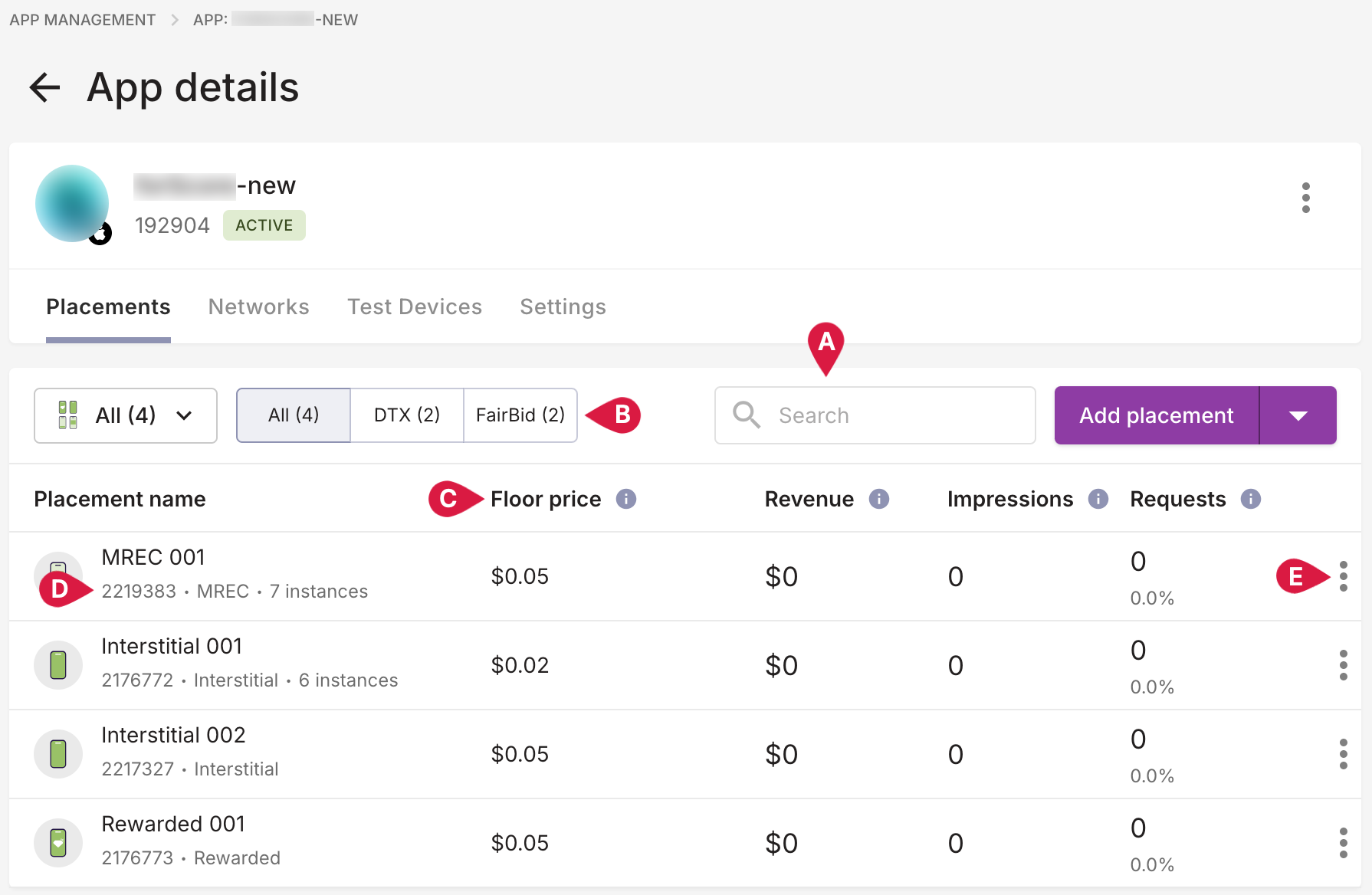
Manage placements for your app from the **Placements** tab on the **App Details** screen. To access the **Placements** tab, select an app from the [Apps Dashboard](https://docs.digitalturbine.com/dt-console/app-management/apps-dashboard). The **Placements** tab lists the placements available for the app. Use the following features of this tab to manage placements.

<div align="left" data-with-frame="true"><img src="https://2949766846-files.gitbook.io/~/files/v0/b/gitbook-x-prod.appspot.com/o/spaces%2FLbREhkP3WlLtP6TNVZ2Q%2Fuploads%2Fy9ES3Nwg2lFTn20YgMuE%2FApp-Details%20_2025-01-22.png?alt=media&#x26;token=c283546f-6805-45ca-bda5-7c637869ea1e" alt=""></div>

<table data-header-hidden><thead><tr><th width="100.1328125">#</th><th>DESCRIPTION</th></tr></thead><tbody><tr><td>A</td><td><p><strong>Placement Search</strong></p><p>Search placements by name or Placement ID.</p></td></tr><tr><td>B</td><td><p><strong>Placement List Filters</strong></p><p>Filter options to display placements by specific ad type or DT Product.</p></td></tr><tr><td>C</td><td><p><strong>Quick Metrics</strong></p><p>At-a-glance reporting metrics for placement performance.</p><ul><li>Hover over a metric for a definition of the metric.</li><li>Click the metric to sort the list of placements by the metric.</li></ul></td></tr><tr><td>D</td><td><p><strong>Placement Details</strong></p><p>Quick reference data for the placement: click-to-copy Placement ID, Ad Type, and number of instances associated with the placement (DT FairBid only).</p></td></tr><tr><td>E</td><td><p><strong>Placement Task Menu</strong></p><p>Three-dot menu reveals tasks you can perform on the placement.</p></td></tr></tbody></table>

## Adding a Placement

To add a placement for an app, the DT Console requires only the following information:

* The ad type for the placement.
* The floor price for the placement.
* A name for the placement.

When adding a new placement, the DT Console uses default values for certain placement properties such as floor price targeting, placement targeting, refresh rate, capping, pacing, etc. To modify these default values, see [Editing a Placement](#h_01J36AYDTBPHAWDVVW081JR3H7).

{% hint style="success" %}
If you plan to add several placements, consider using the [Placement Import](https://docs.digitalturbine.com/dt-console/app-management/setting-up-an-existing-app/setting-up-placements/bulk-importing-placements) feature to import multiple placements instead of entering them one at a time.
{% endhint %}

To add a placement:

1. On the **Placements** tab of the **App Details** screen, click **Add placement**.\
   A new row displays at the top of the placement list with a default floor price of $0.01.

<div align="left" data-with-frame="true"><img src="https://2949766846-files.gitbook.io/~/files/v0/b/gitbook-x-prod.appspot.com/o/spaces%2FLbREhkP3WlLtP6TNVZ2Q%2Fuploads%2F8HK4VtPT4523gOb9NGHn%2FApp%20Details_Placements_AddNew.png?alt=media&#x26;token=56530267-41c9-4272-b67a-712a283f57b9" alt="New placement row"></div>

2. Enter a name and floor price for the new placement.
3. Select the Placement Type icon at the start of the row, and select an ad type from the drop-down menu.
4. Click **Add** at the end of the new placement row.\
   The new placement becomes part of the list of placements with an assigned Placement ID. In addition, a confirmation message displays to confirm the addition of the new placement.

## Editing a Placement

Placement settings vary by placement type. Manage all placement settings from the **Placement details** screen.

To access the **Placement details** screen, click a placement on the **Placements** tab of the **App Details** screen.

<div align="left" data-with-frame="true"><img src="https://2949766846-files.gitbook.io/~/files/v0/b/gitbook-x-prod.appspot.com/o/spaces%2FLbREhkP3WlLtP6TNVZ2Q%2Fuploads%2FjGTSWkN3INrUahDi3tE5%2FPlacement_Details_2024-08-27_12-58-18.png?alt=media&#x26;token=199c4b27-a1a4-4615-8684-4cf444f94f59" alt="" width="563"></div>

<details>

<summary><strong>Floor Price</strong></summary>

The floor price is the minimum price in US dollars at which you are willing to sell your inventory. If you did not specify a floor price when you created a placement, the DT Console sets the default floor price to $0.01 USD worldwide. You can specify a different worldwide floor price and add regional floor prices for specific countries or regions. When you add a regional floor price, the DT Console applies the worldwide floor price to the rest of the world.

Make all floor price modifications under the **Floor price** section on the **Placements** tab of the **Placement details** screen.

<div align="left" data-with-frame="true"><img src="https://content.gitbook.com/content/LbREhkP3WlLtP6TNVZ2Q/blobs/FLQVk7m2ZtP0pJUimqqr/15077264663068" alt="Floor Price Settings"></div>

### Modifying Worldwide Floor Price

To modify the default worldwide floor price:

1. Under the **Floor price** section on the **Placement details** screen, enter the desired floor price in USD.
2. Click **Save changes**.

### Applying Specific Floor Price by Country

To apply a specific floor price to a particular country or region:

1. Under **Floor price** on the **Placement details** screen, click **Add countries**.
2. Select the region or countries to which you want to apply the floor price.
3. Enter the floor price for the selected countries.
4. Click **Apply**.
5. Click **Save changes**. The DT Console applies the regional floor price to the specified countries and the default worldwide floor price for the rest of the world.

</details>

<details>

<summary><strong>Supported ad types and skipability (Interstitial only)</strong></summary>

For Interstitial placements, DT defaults placements to allow both skippable video and display ads. Modify these defaults as needed.

<div align="left" data-with-frame="true"><img src="https://content.gitbook.com/content/LbREhkP3WlLtP6TNVZ2Q/blobs/k6GeDRCM5zjRZd17jbFE/15077222818332" alt="Ad Types for Insterstial Placements"></div>

</details>

<details>

<summary><strong>Server side rewarding (Rewarded only)</strong></summary>

For Rewarded placements, the DT Console does not activate server side rewarding by default. If you create a Rewarded placement and have are using server side rewarding, you must specify the server configuration for rewards. For more information about implementing server side rewarding, see [Server Side Rewarding](#server-side-rewarding-rewarded-only).

<div align="left" data-with-frame="true"><img src="https://content.gitbook.com/content/LbREhkP3WlLtP6TNVZ2Q/blobs/v2Idvpd7wfGD7KVay3VC/15077222819740" alt="Settings for Server Side Rewarding"></div>

To specify server side rewards:

1. Under the **Server side rewards** section on the **Placement details** screen, select the **Enable server side rewarding** checkbox.
2. Enter the **Callback URL**.
3. In the **Currency** field, select a virtual currency that you want to reward the device user with.
4. In the **Rewarded amount** field, enter the amount of virtual currency you want to reward for viewing the interstitial ad.
5. In the **Security token** field, enter the security token.
6. Click **Save changes**.

</details>

<details>

<summary><strong>MREC refresh interval</strong></summary>

When adding an MREC placement, the DT Console defaults the ad refresh interval to 20 seconds. To modify this default, specify the desired refresh rate in the **MREC refresh interval** section of the **Placement details** screen, and click **Save changes**.

<div align="left" data-with-frame="true"><img src="https://content.gitbook.com/content/LbREhkP3WlLtP6TNVZ2Q/blobs/0vQC6sdOrXIdcm9ofEHr/15077264678300" alt="efresh rate for MREC placements"></div>

</details>

<details>

<summary><strong>Banner refresh interval</strong></summary>

When adding a Banner placement, the DT Console defaults the ad refresh interval to 20 seconds. To modify this default, specify the desired refresh rate in the **Banner refresh interval** section of the **Placement details** screen, and click **Save changes**.

<div align="left" data-with-frame="true"><img src="https://content.gitbook.com/content/LbREhkP3WlLtP6TNVZ2Q/blobs/rHLvb7gNVja4JtgaYsIC/15077222822812" alt="Refresh rate for Banner placements"></div>

</details>

<details>

<summary><strong>Targeting</strong></summary>

When you add a placement, the DT Console defaults placement targeting to **Worldwide**. If you want to specifically include or exclude a country or region, add targeting information in the **Targeting** section on the **Placement details** screen.

<div align="left" data-with-frame="true"><img src="https://content.gitbook.com/content/LbREhkP3WlLtP6TNVZ2Q/blobs/jBtgCVX7opEquCqhMH18/15077222812572" alt="Geo Targeting settings for placements"></div>

</details>

<details>

<summary><strong>Privacy settings</strong></summary>

When you add a placement, it inherits the privacy setting of the app by default. Adjust the privacy setting for a specific placement in the **Privacy settings** section of the **Placement details** screen.

<div align="left" data-with-frame="true"><img src="https://content.gitbook.com/content/LbREhkP3WlLtP6TNVZ2Q/blobs/WB68Nhgf7BDyn38DsJtB/15077222814236" alt="Privacy Settings"></div>

</details>

<details>

<summary><strong>Capping and pacing</strong></summary>

When you add a placement, capping and pacing are not set by default. You can limit the number of ads shown on a placement during a given time frame (capping) and also specify how often an ad displays (pacing).

Enter capping and pacing rates in the **Capping and pacing** section of the **Placement details** screen.

<div align="left" data-with-frame="true"><img src="https://content.gitbook.com/content/LbREhkP3WlLtP6TNVZ2Q/blobs/vhtmpwqFEWZImmGJdHIo/15077264674716" alt="Capping and Pacing Settings"></div>

</details>

## Activating and Deactivating a Placement

Deactivating a placement pauses all traffic and data for the placement until you re-activate the placement.

Deactivating placements that are associated with experiments that have not started permanently deletes the experiments. To deactivate a placement with an actively running experiment, end the experiment before deactivating the placement. For more information about how to end an experiment, see [Experimenting with Placements](https://docs.digitalturbine.com/dt-console/app-management/setting-up-an-existing-app/setting-up-placements/experimenting-with-placements).

On the App Details screen, deactivated placements appear as greyed-out rows and are labeled as `INACTIVE`.

<div align="left" data-with-frame="true"><img src="https://content.gitbook.com/content/LbREhkP3WlLtP6TNVZ2Q/blobs/IJXLcegbwOHCrCE2lL9r/18406577272348" alt=""></div>

To deactivate a placement:

1. On the **App Details** screen, locate the active placement you want to deactivate.
2. Click the three-dot menu for the placement, and click **Deactivate**.\
   A confirmation message appears. Traffic and data get paused for the placement.
3. Click **Confirm**.\
   The placement is now deactivated

To activate an inactive placement:

1. On the **App Details** screen, locate the inactive placement you want to activate.
2. Click the three-dot menu for the inactive placement, and click **Activate**.\
   A confirmation message appears. Traffic and data for the placement resume.

## Deleting a Placement

{% hint style="danger" %}
Deleting a placement is a permanent action. You cannot restore a deleted placement.
{% endhint %}

To delete a placement:

1. On the **App Details** screen, locate the placement you want to delete.
2. Click the three-dot menu for the placement, and click **Delete**.\
   A confirmation message appears.
3. Click **Confirm**.\
   The placement is permanently removed from the app.
