> For the complete documentation index, see [llms.txt](https://docs.digitalturbine.com/llms.txt). Markdown versions of documentation pages are available by appending `.md` to page URLs; this page is available as [Markdown](https://docs.digitalturbine.com/dt-console/app-management/setting-up-an-existing-app/setting-up-instances.md).
# Setting Up Instances
{% hint style="warning" %}
DT uses instances to support network mediation which is only available for **DT FairBid customers**.
{% endhint %}
Mediated network instances, also known as *instances*, indicate the networks you want DT to mediate your placement.
Manage all network instances from the **Instances** section of the **Placement details** screen.
To access the **Placement details** screen:
1. Select an app from the [Apps Dashboard](/dt-console/app-management/apps-dashboard.md).
2. Go to the **Placements** tab.
3. Select the placement that you want to mediate.\
The **Placement details** screen displays all networks where DT offers the placement.
## Adding an Instance
Adding instances to placements specifies the networks on which you want DT to mediate the placement. Before you begin adding instances to placements, ensure that you have completed the following tasks:
* [Add the mediated network](/dt-console/app-management/setting-up-an-existing-app/setting-up-mediated-networks.md#adding-a-mediated-network) to your app.
* [Add placements](/dt-console/app-management/setting-up-an-existing-app/setting-up-placements.md) to your app.
Once you network and placements have been added you your app, you can add the following types of instances to your placements:
* **Waterfall**: Allows for traditional waterfall mediation. When adding a Waterfall instance, confirm that you have a corresponding placement in your network setup. You must provide a name and ID for the instance. DT highly recommends using network placement identifiers so that you can easily identify the placement in the DT Console and on the network. For more information, see [Adding a Waterfall Instance](#h_01JREWSZ35BVDEVSB8XDXFHKZW).
* **Bidding**: Allows for programmatic bidding mediation. You can add bidding instances in the following ways:
* **Manual**: When manually adding a Bidding instance, confirm that you have a corresponding placement in your network setup. You must provide a name and ID for the instance. DT highly recommends using network placement identifiers so that you can easily identify the placement in the DT Console and on the network. Use manual instance creation for Waterfall networks and manually managed Bidding networks.
For more information, see [Manually Adding a Bidding Instance](#h_01J3RD5A45GD79RK31ERHWMV3R).
* **Automatic**: When automatically adding Bidding instances, DT creates the corresponding placement on the network on your behalf and generates the instance name and ID based on the new network placement. Use automatic instance creation for automatically managed bidding networks.
For more information, see [Automatically Adding a Bidding Instance](#h_01JR13WRNMJEPRFCC26PZBZGMH).
### Adding a Waterfall Instance
In general, DT requires a unique name and ID when adding instances. DT suggests using a unique name and Instance ID derived from a unique network identifier for the corresponding placement on the network. This allows you to reference DT placements with the corresponding network placements. For more information about which network parameter to use, see the appropriate [Network Integration Guide](/dt-fairbid/fairbid-sdk/supported-networks/network-integration-guides.md).
However, you may reuse instance names and IDs under the following conditions:
* The placements are of the same type. For example, you can reuse an instance in a Banner placement for an instance in any other Banner placement. However, you cannot reuse an instance in a Banner placement for an instance in an Interstitial placement.
* Enter the exact name and ID of the instance you want to reuse. You cannot reuse an instance name with another ID, and conversely, you cannot reuse an instance ID with another name.
* You have integrated FairBid SDK version 3.56.0 or later.
When you add a Waterfall instance, DT uses default settings for CPM and targeting. You can modify these values after adding the instance. For more information, see [Editing an Instance](#editing-an-instance).
To add an instance of a Waterfall network:
1. From the **Instances** section of the **Placement details** screen, click **Add instance**.\
The **Add instance** window opens and displays a list of mediated networks associated with your app.
{% hint style="info" %}
If the mediated network for which you want to create an instance does not appear in this list, then the network has not been added to your app. For more information, see [Adding a Waterfall Network](/dt-console/app-management/setting-up-an-existing-app/setting-up-mediated-networks.md#adding-a-waterfall-network).
{% endhint %}
2. On the **Add instance** window, click the tile for the waterfall network.\
The **Add instance** naming form appears.
3. Enter a **Name** for the instance. You can enter a unique name or reuse an existing instance name from the same network and placement type. DT uses this name for all reporting activities.
4. Enter an **Instance ID**. DT suggests using the unique identifier for this placement from the mediated network. For more information about what network identifier to use, see the appropriate [Network Integration Guide](/dt-fairbid/fairbid-sdk/supported-networks/network-integration-guides.md).
5. Enter the minimum price you are willing to accept (CPM) for this placement in the **Worldwide CPM** field. DT uses this CPM until it establishes an automatic eCPM.
6. Click **Add instance**.\
The instance now appears in the **Waterfall** section of the **Placement details** screen.
### Manually Adding a Bidding Instance
In general, DT requires a unique name and ID when adding instances. DT suggests using a unique name and Instance ID derived from a unique network identifier for the corresponding placement on the network. This allows you to reference DT placements with the corresponding network placements. For more information about which network parameter to use for instance naming, see the appropriate [Network Integration Guide](/dt-fairbid/fairbid-sdk/supported-networks/network-integration-guides.md).
However, you may reuse instance names and IDs under the following conditions:
* The placements are of the same type. For example, you can reuse an instance in a Banner placement for an instance in any other Banner placement. However, you cannot reuse an instance in a Banner placement for an instance in an Interstitial placement.
* Enter the exact name and ID of the instance you want to reuse. You cannot reuse an instance name with another ID, and conversely, you cannot reuse an instance ID with another name.
* You have integrated FairBid SDK version 3.56.0 or later.
To manually add an instance:
1. From the **Instances** section of the **Placement details** screen, click **Add instance**.\
The **Add instance** window opens and displays a list of mediated networks associated with your app.
{% hint style="info" %}
If the mediated network for which you want to create an instance does not appear in this list, then the network has not been added to your app. For more information, see [Adding a Manually Managed Bidding Network](/dt-console/app-management/setting-up-an-existing-app/setting-up-mediated-networks.md#adding-a-manually-managed-bidding-network).
{% endhint %}
2. On the **Add instance** window, click the tile for the manually managed bidding network.\
The **Add instance** naming form appears.
3. Enter a **Name** for the instance. You can enter a unique name or reuse an existing instance name from the same network and placement type. DT uses this name for all reporting activities.
4. Enter an **Instance ID**. DT suggests using the unique identifier for this placement from the mediated network. For more information about what network identifier to use,see the appropriate [Network Integration Guide](/dt-fairbid/fairbid-sdk/supported-networks/network-integration-guides.md).
5. Click **Add instance**.\
The instance now appears in the **Bidding** section the **Placement details** screen.
### Automatically Adding a Bidding Instance
If you have added an automatically managed bidding network to your app, you can automatically generate instances for that network in your placements. When you automatically generate an instance, DT adds the corresponding placement on the network on your behalf, and then generates a name and ID for the instance based on the newly added placement on the network. For more information about how to add an automatically managed network to your app, see [Adding an Automatically Managed Bidding Network](/dt-console/app-management/setting-up-an-existing-app/setting-up-mediated-networks.md#adding-an-automatically-managed-bidding-network).
{% hint style="info" %}
Instances can be automatically generated for the following bidding networks:
* Google Bidder
* Liftoff Monetize Bidder
* Mintegral Bidder
* Pangle Bidder
{% endhint %}
To automatically add an instance:
1. From the **Instances** section of the **Placement details** screen, click **Add instance**.\
The **Add instance** window opens and displays a list of mediated networks associated with your app.
{% hint style="info" %}
If the mediated network for which you want to generate an instance does not appear in the list, then the network has not been added to your app. For more information, see [Adding an Automatically Managed Bidding Network](/dt-console/app-management/setting-up-an-existing-app/setting-up-mediated-networks.md#adding-an-automatically-managed-bidding-network).
{% endhint %}
2. On the **Add instance** window, click the tile for the automatically managed bidding network.\
The **Add instance** naming form appears.
3. Click **AUTO GENERATE**.\
A status message confirms that a corresponding placement was created on the network, and DT populates the instance name and ID based on the new network placement.
4. If needed, modify the generated name of the instance.
{% hint style="info" %}
You cannot modify the pre-populated Instance ID, as it is based on a unique ID for the network placement.
{% endhint %}
5. Click **Add instance**.\
The instance now appears in the **Instances** section.
## Editing an Instance
The DT Console creates Waterfall instances with default pricing and targeting settings. You can adjust these defaults as needed. Make all instance modifications on the **Instance settings** window. From the **Placement details** screen, click the Waterfall instance you want to modify.
{% hint style="info" %}
You can only modify pricing and targeting settings for Waterfall instances.
{% endhint %}
Pricing
When adding an instance, the DT Console applies Auto CPM by default. Auto CPM automatically adjusts the CPM based on historical pricing. While DT gathers pricing data to determine the best CPM, DT applies the Worldwide CPM. Once the DT Console gathers enough data to make CPM predictions, the instance shifts to use the CPM determined by Auto CPM.
If you do not want to use Auto CPM, deactivate Auto CPM, and manually enter either a Worldwide CPM or targeted CPMs. Additionally, some networks (Google Ad Manager and BIGO Ads) do not support Auto CPM and require you to manually enter a CPM.
### Applying Manual Worldwide Pricing
To apply manual worldwide pricing:
1. Ensure that the **AUTO CPM** checkbox is deselected.
2. Enter the CPM for the **Worldwide** entry.
3. Click **Save**.
### Applying Manual Pricing by Country
To apply manual pricing by country or region:
1. Ensure that the **AUTO CPM** checkbox is deselected.
2. Click **Add countries**.\
A list of countries available for targeting displays.
3. Select the countries or regions you want to target.\
As you select countries, they move to the top of the list.
4. In the **CPM** field, enter the CPM for the selected countries.
5. Click **Apply**.
6. Repeat Steps 2-5 until you have specified all of your CPM targets.\
The list of countries in the Pricing sections updates as you add targets, and the `Worldwide` target changes to `Rest of the World`.
7. Click **Save**.
Targeting
You can target the availability of the instance by country or user type. Modify all Instance targeting settings in the **Targeting** section of the **Instance settings** window.
### Targeting Instance by Country
The DT Console defaults to exclude no country or region. You can include or exclude countries or regions as needed.
### Targeting Instance by User Tracking Status
To target by User Tracking status, select the tracking status for which you want to allow this instance.
1. Under **TARGET BY USER TRACKING STATUS**, select the tracking status for which you want to allow this instance.
2. Click **Save**.
## Activating and Deactivating an Instance
Deactivated instances are not mediated, and you cannot modify the settings of a deactivated instance.
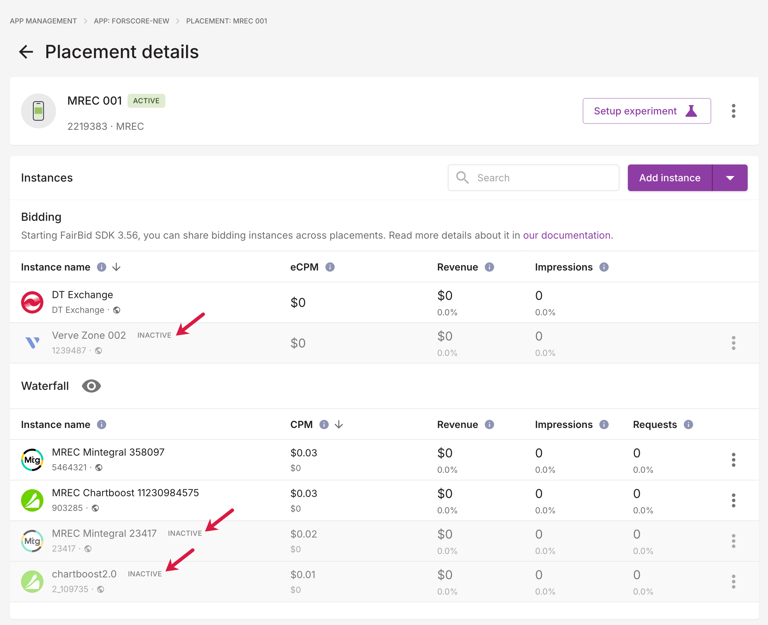
On the **Placement details** screen, deactivated bidding instances display as greyed-out rows, while deactivated waterfall instances are hidden from the list of instances. To display deactivated waterfall instances, click the show/hide instances icon (). All deactivated instances are labeled as `INACTIVE`.
To deactivate an instance:
1. On the **Placement details** screen, locate the active instance you want to deactivate.
2. Click the three-dot menu for the instance, and click **Deactivate**.\
A confirmation message appears.
3. Click **Confirm**.\
The instance is now deactivated.
To activate an inactive instance:
1. On the **Placement details** screen, locate the inactive instance you want to activate.
2. Click the three-dot menu for the inactive instance, and click **Activate**.\
The instance is now an active instance for mediation.
## Deleting an Instance
Deleting an instance stops mediation of the placement on the network.
{% hint style="success" %}
If you want to stop mediation of the placement while preserving settings such as pricing, targeting, instance names, and IDs, consider deactivating the instance instead of deleting it. For more information, see [Activating and Deactivating an Instance](#activating-and-deactivating-an-instance).
{% endhint %}
To delete an instance:
1. On the **Placement details** screen, locate the instance you want to delete.
2. Click the three-dot menu for the instance, and click **Delete**.\
A confirmation message appears.
3. Click **Confirm**.\
DT no longer offers the placement for mediation on the network.
---
# Agent Instructions
This documentation is published with GitBook. GitBook is the documentation platform designed so that both humans and AI agents can read, navigate, and reason over technical content effectively. Learn more at gitbook.com.
## Querying This Documentation
If you need additional information that is not directly available in this page, you can query the documentation dynamically by asking a question.
Perform an HTTP GET request on the current page URL with the `ask` query parameter, and the optional `goal` query parameter:
```
GET https://docs.digitalturbine.com/dt-console/app-management/setting-up-an-existing-app/setting-up-instances.md?ask=&goal=
```
`ask` is the immediate question: it should be specific, self-contained, and written in natural language.
`goal` is optional and describes the broader end goal you are ultimately trying to accomplish on behalf of the user. GitBook uses it to tailor the answer towards what is most useful for that goal.
The response will contain a direct answer to the question and relevant excerpts and sources from the documentation.
Use this mechanism when the answer is not explicitly present in the current page, you need clarification or additional context, or you want to retrieve related documentation sections.